DLC4P: Real-Time Deepfake Face Swapping for Penetration Testing and Security Training

Introducing DLC4P: Real-Time Face Swapping for Security Professionals
If you’ve ever needed to demonstrate the real-world dangers of deepfakes to a client—live, in real-time, with their own face staring back at them—you know how powerful (and unsettling) the technology can be. Whether you’re conducting social engineering awareness training, red team operations, or security research, having a tool that can swap faces convincingly in real-time is increasingly essential.
The problem? Most existing tools were either too slow for live demonstrations or lacked the precision needed for professional use. We wanted something that could run at 20+ FPS with crisp faces, support realistic mouth movements, extreme face expressions/positions, and provide fine-grained control over the swapping process, to make a truly persuasive impersonation.
That’s why we built DLC4P (Deep-Live-Cam for Pentesters).
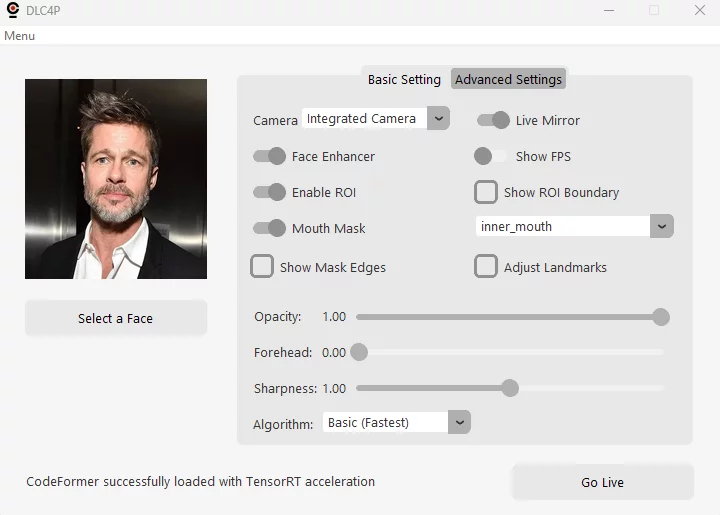
Today, we’re sharing this optimized fork of the popular Deep-Live-Cam project. It’s a highly performance-tuned, real-time face swapping tool designed specifically for security professionals who need reliable, high-quality deepfake capabilities for authorized penetration testing and training scenarios.
The Quest: Look Beyond the Deepfake Hype
The story of this tool begins with a question that’s been running through my head in the past few months, as someone that works as a security consultant in the AI era: What’s actually available out there for real-time deepfakes?
The media is full of sensational headlines about AI-generated videos and the looming threat of deepfake impersonation. But when you’re preparing for a high-stakes assessment—whether it’s a social engineering engagement against a security-aware target or a training session for executives who’ve “seen it all”—you need to know what an attacker with moderate resources could actually deploy. Not in Hollywood. Not in a research lab. Right now, with off-the-shelf tools.
So we surveyed the landscape. FaceFusion, Roop, SimSwap, DeepFaceLive—we tested them all. Some had impressive quality but were too slow for real-time use. Others were fast but produced uncanny results that wouldn’t fool anyone with a critical eye. Many were abandoned projects with broken dependencies.
Deep-Live-Cam stood out. It had active development, clean architecture, good quality, and actual real-time capabilities. It was, by far, the best open-source option for live face swapping. We thought we’d found our tool.
Then we ran it against the kind of target that matters: keen, observant people in good lighting with decent webcams—exactly the profile of high-value targets in social engineering assessments. During our testing, we hit several performance roadblocks (1)(2):
- Face swapping alone: around 15 FPS (acceptable, but not smooth)
- With face enhancement (GFPGAN): a maximum of 5 FPS (visibly choppy, unprofessional for a real attack scenario)
- FPS would fluctuate wildly as the GPU throttled under load
- The mouth area—always the telltale sign of deepfakes—had visible defects, as most models were not trained with sufficient inner mouth images
These numbers align with what is advertised in the Quickstart site for Deep-Live-Cam:

(1) All benchmarks referenced herein were measured on a Lenovo ThinkPad P1 G6, 64GB RAM, NVIDIA GeForce RTX 4080 Laptop GPU (12GB VRAM).
(2) The FPS cited in every scenario throughout this document are average values calculated during runtime, as FPS slightly fluctuate during application normal usage due to environmental conditions such as lighting or subject proximity—all of which were kept the same for the sake of this comparison.
For a live demonstration where you need to maintain credibility and show the real threat, 5 FPS with visible mouth artifacts wasn’t going to cut it. We needed something that could run at 20+ FPS with enhancement enabled, maintain consistent performance, and handle extreme facial expressions (shouting, wide smiles, side views) without breaking the illusion.
So we rolled up our sleeves and went deep into optimization.
The Result: 300% Performance Improvement
After extensive profiling, optimization, and testing, DLC4P now achieves:
- 27 FPS for face swapping alone (up from 15 FPS – 80% faster)
- 20 FPS with face enhancement enabled (up from 5 FPS – 300% faster)
- More consistent frame times with GPU clock stabilization
- Aggressive face enhacenment without a significant performance drop
- Realistic mouth movements with adaptive masking
Below you will see a 2×2 video matrix showcasing both Deep-Live-Cam (left) and DLC4P (right) performing side by side for basic face swapping only (up) and also using a face enhancer model (down):
Here’s the story on how we did it.
The Optimization Journey: Every FPS Counts
A few months back while I had some free time between client engagements, I started reviewing the code and assessing the different aspects of the application that could/should be adjusted to get to a performance level to my expectations. This lead to several incremental changes through the entire UI and codebase, from minor modifications to model replacement and full pipeline redesign. Next is a brief summary of them:
1. TensorRT Acceleration: The Foundation
The original Deep-Live-Cam relies on standard CUDA execution for all models. While CUDA is fast, it doesn’t take advantage of NVIDIA’s TensorRT optimization framework, which performs automatic graph fusion, kernel optimization, and precision calibration.
We modified the application to make it possible to use of TensorRT across all three model components:
- Face Detection, performed with Buffalo_l (FP32 only)
- Face Swapping, performed with InSwapper (user-selectable FP16/FP32)
- Face Enhancement, (now) performed with CodeFormer (user-selectable FP16/FP32)
Here’s what the TensorRT configuration looks like for the face swapper:
# Face swapping with TensorRT - configurable precision
use_fp16 = modules.globals.face_swapper_precision == 'fp16'
base_cache_dir = './fp16_trt_cache' if use_fp16 else './fp32_trt_cache'
cache_dir = os.path.join(base_cache_dir, 'face_swapper')

if use_fp16:
    # FP16: Simplified settings for stability
    providers = [('TensorrtExecutionProvider', {
        'trt_engine_cache_enable': True,
        'trt_engine_cache_path': cache_dir,
        'trt_timing_cache_enable': True,
        'trt_layer_norm_fp32_fallback': True,  # Stability for FP16
        'trt_context_memory_sharing_enable': False,
        'trt_auxiliary_streams': 1
    }), 'CPUExecutionProvider']
else:
    # FP32: Full optimization settings
    providers = [('TensorrtExecutionProvider', {
        'trt_fp16_enable': False,
        'trt_engine_cache_enable': True,
        'trt_engine_cache_path': cache_dir,
        'trt_max_workspace_size': 4294967296,  # 4GB
        'trt_builder_optimization_level': 5,  # Maximum optimization
        'trt_timing_cache_enable': True
    }), 'CPUExecutionProvider']
There is a minor trade-off: TensorRT requires an initial “engine building” phase on first run (2-5 minutes), but subsequent runs load instantly from cached engines. For a tool you’ll use repeatedly during engagements, this one-time investment pays off massively.
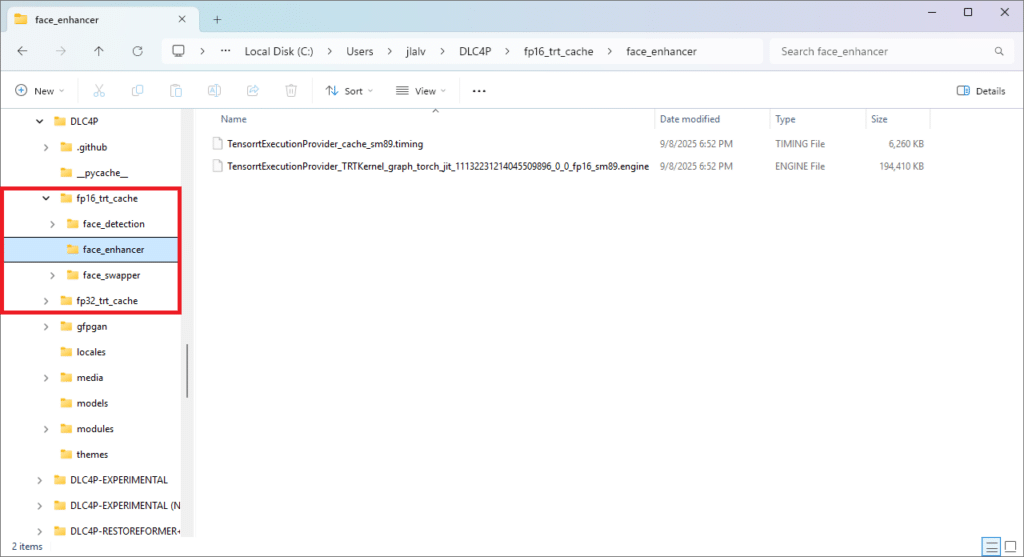
2. Buffalo_l Model Reduction: Cutting the Fat Excess
The original Buffalo_l face detection suite loads 5 models:
detection(RetinaFace) – essentialrecognition(ArcFace) – essentiallandmark_2d_106(106 facial landmarks) – essentiallandmark_3d_68(3D landmarks) – not needed for face swappinggenderage(gender/age estimation) – not needed for face swapping
We only need the first three. So we surgically remove the unnecessary models after initialization:
# Optimize: Remove unnecessary models after loading
models_to_remove = ['genderage', 'landmark_3d_68']

for model_name in models_to_remove:
    if hasattr(FACE_ANALYSER, model_name):
        delattr(FACE_ANALYSER, model_name)
    if model_name in FACE_ANALYSER.models:
        del FACE_ANALYSER.models[model_name]

print(f"[FACE-ANALYSER] Active models: {list(FACE_ANALYSER.models.keys())}")
# Output: Active models: ['detection', 'recognition', 'landmark_2d_106']
3. ROI-Based Processing: The Main Game Changer
This was one of the breakthrough optimizations. The original project —as well as other alternatives we analyzed— processes the entire frame for face swapping (e.g., 960×540 = 518,400 pixels) even though the face typically occupies only 10-15% of the frame.
The Math:
- Full frame: 960×540 = 518,400 pixels
- Face ROI: 210×289 = 60,690 pixels
- Pixel reduction: 88.3%
Instead of processing the entire frame, we:
- Detect the face location (8ms)
- Calculate a minimal ROI with adaptive padding (20px + 15% of face size)
- Extract only the face region (~60K pixels)
- Process face swapping on the ROI
- Composite the result back using face-shaped masking
Here’s the ROI calculation:
def calculate_face_roi(target_face, frame_shape,
                       min_padding=20, adaptive_factor=0.15):
    """
    Adaptive ROI with minimal padding for optimal performance.
    Total padding = 20px + 15% of face size
    """
    x1, y1, x2, y2 = target_face.bbox
    face_width, face_height = x2 - x1, y2 - y1

    # Minimal adaptive padding (much smaller than old 50%)
    padding_x = min_padding + int(face_width * 0.15)
    padding_y = min_padding + int(face_height * 0.15)

    # Calculate ROI bounds (clamped to frame boundaries)
    roi_x1 = max(0, x1 - padding_x)
    roi_y1 = max(0, y1 - padding_y)
    roi_x2 = min(width, x2 + padding_x)
    roi_y2 = min(height, y2 + padding_y)

    return (roi_x1, roi_y1, roi_x2, roi_y2)
Then we added the ROI back to the original frame. Instead of pasting back a rectangular ROI (which would create visible seams), our solution was to use face-shaped masking for seamless blending:
# Face-shaped compositing (not rectangular ROI)
face_mask = create_face_mask(landmarks)  # Mask follows face contours
blended_roi = cv2.seamlessClone(swapped_roi, original_roi, face_mask,
                                 center, cv2.NORMAL_CLONE)
final_frame = composite_roi_back(frame, blended_roi, roi_coords)
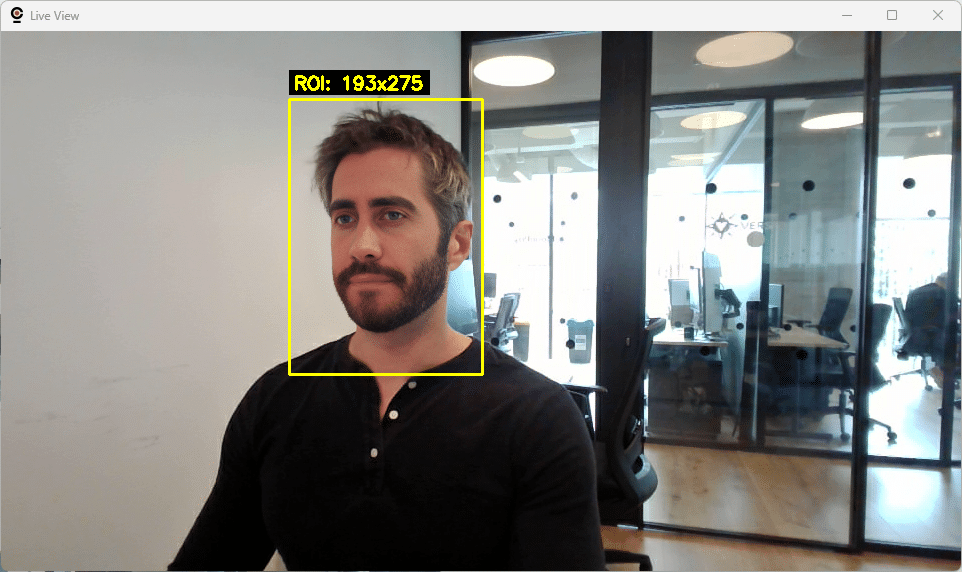
You can compare the performance difference yourself by enabling/disabling the use of ROI with the toggle in the UI, and also use the “Show ROI Boundary” in the UI to visualize the exact region being processed—useful when optimizing or troubleshooting detection issues.
4. CodeFormer Replacement: Faster & Better Face Enhancement
The original Deep-Live-Cam uses GFPGAN (PyTorch-based) for face enhancement. It is great for offline processing, but for real-time use it’s a bottleneck and, frankly, the resulting faces look a bit fake. That’s why we evaluated other alternatives but finally decided to use CodeFormer in combination with the following optimizations:
- ONNX Runtime: Native GPU acceleration without PyTorch overhead
- TensorRT Integration: Graph fusion and kernel auto-tuning
- ROI Processing: 512×512 aligned faces only (not full frames)
- Memory Pooling: Pre-allocated tensors eliminate allocation overhead
- Shared Detection: Reuses face detection from swapper (saves 7ms per frame)
The results looked way more real and precise than any other enhancement models we tried. If you want to take a peek, here’s the CodeFormer setup:
class CodeFormerONNX:
    def __init__(self, model_path, precision='fp16'):
        # Configure TensorRT with precision control
        cache_dir = f'./{precision}_trt_cache/face_enhancer'
        os.makedirs(cache_dir, exist_ok=True)

        tensorrt_options = {
            'device_id': 0,
            'trt_fp16_enable': (precision == 'fp16'),
            'trt_max_workspace_size': 2147483648,  # 2GB
            'trt_engine_cache_enable': True,
            'trt_engine_cache_path': cache_dir,
            'trt_timing_cache_enable': True,
            'trt_context_memory_sharing_enable': True
        }

        # Advanced session options for optimal performance
        sess_options = onnxruntime.SessionOptions()
        sess_options.graph_optimization_level = \
            onnxruntime.GraphOptimizationLevel.ORT_ENABLE_EXTENDED
        sess_options.enable_mem_pattern = True
        sess_options.enable_mem_reuse = True
        sess_options.execution_mode = onnxruntime.ExecutionMode.ORT_SEQUENTIAL
        sess_options.inter_op_num_threads = 1
        sess_options.intra_op_num_threads = 4

        self.session = onnxruntime.InferenceSession(
            model_path,
            sess_options=sess_options,
            providers=[('TensorrtExecutionProvider', tensorrt_options),
                      ('CPUExecutionProvider', {})]
        )
CodeFormer in DLC4P achieves equivalent visual quality to HuggingFace’s oficcial implementation at https://huggingface.co/spaces/sczhou/CodeFormer while delivering approximately 6x faster inference. We hardcode fidelity=1.0 for maximum identity preservation—critical for convincing deepfakes.
As mentioned before, to avoid repeating the face detection process we made both face swapper and enhancer share the same face detection results using a shared cache:
# Unified detection cache (7ms saved per frame)
cached_data = {
    'face_coordinates': target_face,
    'roi_coordinates': roi_coords,
    'mouth_mask_data': mouth_mask  # More on this next...
}

# Face swapper uses ROI + detection
swapped_frame = process_with_roi(frame, cached_data)

# Face enhancer reuses cached detection (no redundant detection call)
enhanced_frame = enhance_with_cached_data(swapped_frame, cached_data)
5. Multi-Threading Architecture: Four Performance Profiles
Transitioning from a single-threaded pipeline to full parallelism was not achieved at once. We dealt with multiple performance and stability issues during the road, so we gradually increased the level of parallelism through different threading modes, making sure each worked as expected before moving to the next. While all of the tests performed on a few different systems/GPUs perform as expected for every threading mode, we wanted to give you the chance to play with and adjust the threading modes being used just in case something happens.
| Mode | Total Threads | Description |
|---|---|---|
| Single | 1 | All operations in main thread (simplest, most stable) |
| Basic | 3 | Capture thread + Processing thread + Main display thread |
| Enhanced | 3 | Basic + TensorRT warmup + buffer pooling optimizations |
| Parallel | 4 | Capture + Face Swap + Enhancement + Main display threads |
Parallel Mode Architecture (4 threads total):
Thread 1: Camera Capture (Raw Frames Queue)
Thread 2: Face Swapping  (Swapped Frames Queue)
Thread 3: Face Enhancement (Enhanced Frames Queue)
Thread 4: Main UI Thread (required for Tkinter/GUI)
Smart Buffer Flushing (Parallel Mode): Webcam buffers can introduce latency if frames accumulate faster than they can be processed. DLC4P implements intelligent buffer management:
def capture_thread():
    """Capture thread with smart buffer flushing"""
    last_queue_full_time = 0
    last_periodic_flush = time.time()

    while pipeline_running.is_set():
        # Capture latest frame
        ret, latest_frame = cap.read()
        frames_flushed = 1

        # Smart flushing: only when needed
        time_since_queue_full = time.time() - last_queue_full_time
        time_since_periodic_flush = time.time() - last_periodic_flush

        should_flush = (
            time_since_queue_full < 0.05 or  # Recent backpressure (50ms)
            time_since_periodic_flush > 0.5   # Periodic flush (500ms)
        )

        if should_flush:
            # Flush at most 2 additional frames to get latest
            for _ in range(2):
                ret_extra, frame_extra = cap.read()
                if ret_extra:
                    latest_frame = frame_extra
                    frames_flushed += 1

            if time_since_periodic_flush > 0.5:
                last_periodic_flush = time.time()

        # Queue latest frame (non-blocking)
        try:
            raw_frames.put_nowait(latest_frame)
        except queue.Full:
            last_queue_full_time = time.time()
            dropped_frames += 1
Real Production Performance Logs (Parallel Mode, FP16, Face Enhancer):
[PERFORMANCE] Average FPS: 19.6
[DEBUG-THREADING-P3] === PERFORMANCE SUMMARY ===
[DEBUG-THREADING-P3] Capture: 46.1ms avg
[DEBUG-THREADING-P3] Face Swap: 42.8ms avg
[DEBUG-THREADING-P3] Enhancement: 42.8ms avg
[DEBUG-THREADING-P3] Drop rate: 19.4%
[DEBUG-THREADING-P3] Display FPS: 19.6
[DEBUG-THREADING-P3] ===========================
Switching Modes: Threading mode is saved between sessions, and can be set via:
- Command line:
--threading-mode parallel - UI: Advanced Settings → Threading dropdown
6. GPU Clock Stabilization: More Consistent Performance
Modern GPUs dynamically adjust clock speeds based on thermal and power conditions. And we don’t want FPS fluctuating up and down because the GPU throttled, so DLC4P automatically locks GPU clocks to 90-95% of maximum when run with administrator privileges to reduce these fluctuations:
def limit_resources():
    """Lock GPU clocks at startup for consistent performance"""
    if platform.system().lower() == 'windows':
        optimal_graphics, optimal_memory = get_optimal_gpu_clocks()

        if optimal_graphics and optimal_memory:
            # Lock graphics clock to 90% of max (requires admin)
            subprocess.run([
                'nvidia-smi', '-lgc',
                f'{optimal_graphics},{optimal_graphics}'
            ], capture_output=True, text=True, timeout=5)

            # Lock memory clock to 95% of max
            subprocess.run([
                'nvidia-smi', '-lmc',
                f'{optimal_memory},{optimal_memory}'
            ], capture_output=True, text=True, timeout=5)

def get_optimal_gpu_clocks() -> tuple:
    """Query maximum clocks and calculate optimal settings"""
    result = subprocess.run([
        'nvidia-smi',
        '--query-gpu=clocks.max.graphics,clocks.max.memory',
        '--format=csv,noheader,nounits',
        '--id=0'
    ], capture_output=True, text=True, timeout=10)

    if result.returncode == 0 and result.stdout.strip():
        max_graphics_str, max_memory_str = result.stdout.strip().split(', ')
        max_graphics = int(float(max_graphics_str))
        max_memory = int(float(max_memory_str))

        # Calculate optimal clocks for thermal stability
        optimal_graphics = int(max_graphics * 0.90)  # 90% of max
        optimal_memory = int(max_memory * 0.95)      # 95% of max

        return optimal_graphics, optimal_memory

    return None, None
Example Output:
[DEBUG-GPU-OPTIMIZATION] Detected max clocks: Graphics=3105MHz, Memory=9001MHz
[DEBUG-GPU-OPTIMIZATION] Optimal settings: Graphics=2794MHz (90%), Memory=8550MHz (95%)
[DEBUG-GPU-OPTIMIZATION] GPU graphics clock locked to 2794 MHz (90% of max)
[DEBUG-GPU-OPTIMIZATION] GPU memory clock locked to 8550 MHz (95% of max)
Note: Clocks are automatically reset to default when the application exits.
Beyond Performance: Quality and Reliability
While the optimizations above focus on maximizing FPS, professional deepfake work demands more than just speed—it requires both realism and consistency. The following enhancements ensure DLC4P produces convincing results that hold up under scrutiny, even in unpredictable multi-person scenarios.
1. Precise Mouth Masking: Defeating the Uncanny Valley
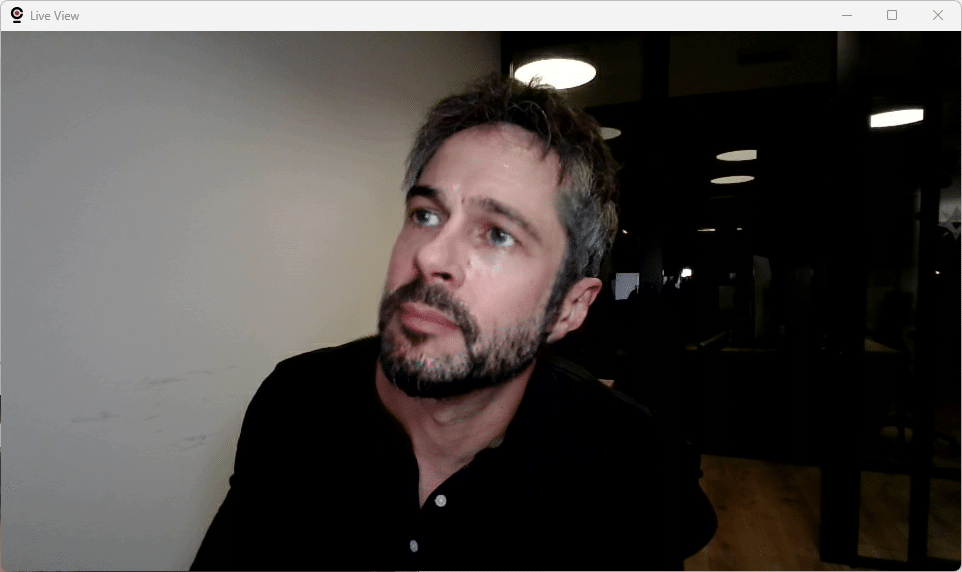
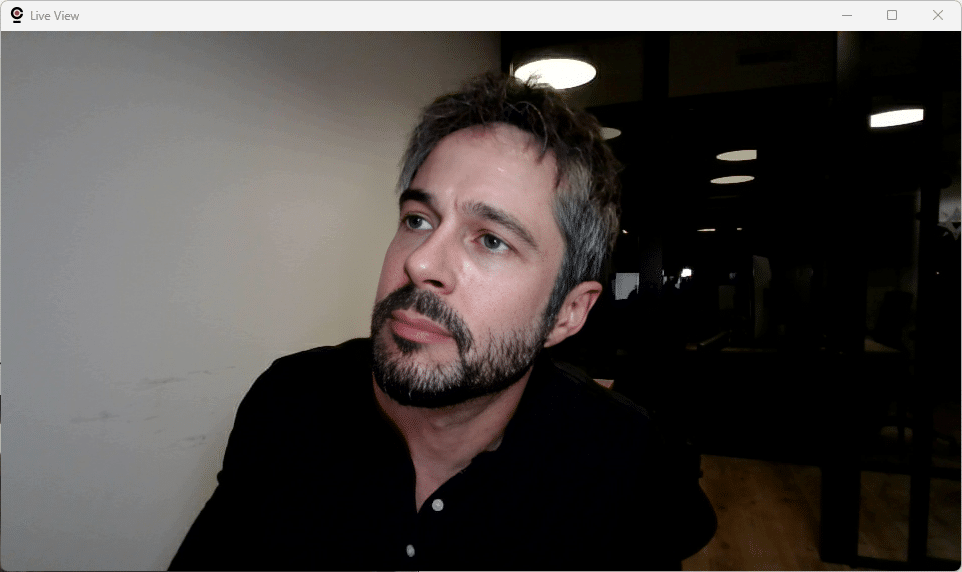
One of the most common tells of a deepfake is the mouth area. You will find plenty of blogposts and educational videos online where security savvy people points at this specific Achilles’ heel of deepfakes. During somewhat extreme expressions—wide open mouth, shouting, even slight side views—most deepfake tools fail, creating that telltale “uncanny valley” effect. Even the latest version of Picsi Face Swap, an iOS face swapper developed by the very same developers of the InSwapper model we use in our fork, fails when dealing with internal mouth details:
DLC4P implements asymmetric mouth mask expansion optimized for natural mouth movements even in extreme face expressions:
def create_inner_mouth_mask(face, frame):
    """
    Inner mouth mask with asymmetric expansion for natural movement.
    Focuses on inner mouth opening (teeth, tongue) during extreme expressions.
    """
    landmarks = face.landmark_2d_106

    # Apply manual landmark adjustments if configured
    landmarks = adjust_landmarks_manually(landmarks)

    # Inner mouth landmarks (8 key points)
    selected_points = [65, 54, 60, 57, 69, 70, 62, 66]
    selected_landmarks = landmarks[selected_points].astype(np.float32)

    # Calculate geometric center
    center = np.mean(selected_landmarks, axis=0)

    # Asymmetric expansion - moderate horizontal, aggressive vertical
    horizontal_expansion = 1.1  # 10% horizontal
    vertical_expansion = 2.2    # 120% vertical (handles wide mouth opening)

    expanded_landmarks = selected_landmarks.copy()
    expanded_landmarks[:, 0] = (selected_landmarks[:, 0] - center[0]) * horizontal_expansion + center[0]
    expanded_landmarks[:, 1] = (selected_landmarks[:, 1] - center[1]) * vertical_expansion + center[1]

    # Create polygon mask with minimal feathering for precision
    mask_roi = np.zeros((height, width), dtype=np.uint8)
    cv2.fillPoly(mask_roi, [expanded_landmarks.astype(np.int32)], 255)
    # No Gaussian blur - sharp edges for precise inner mouth masking

    return mask_roi
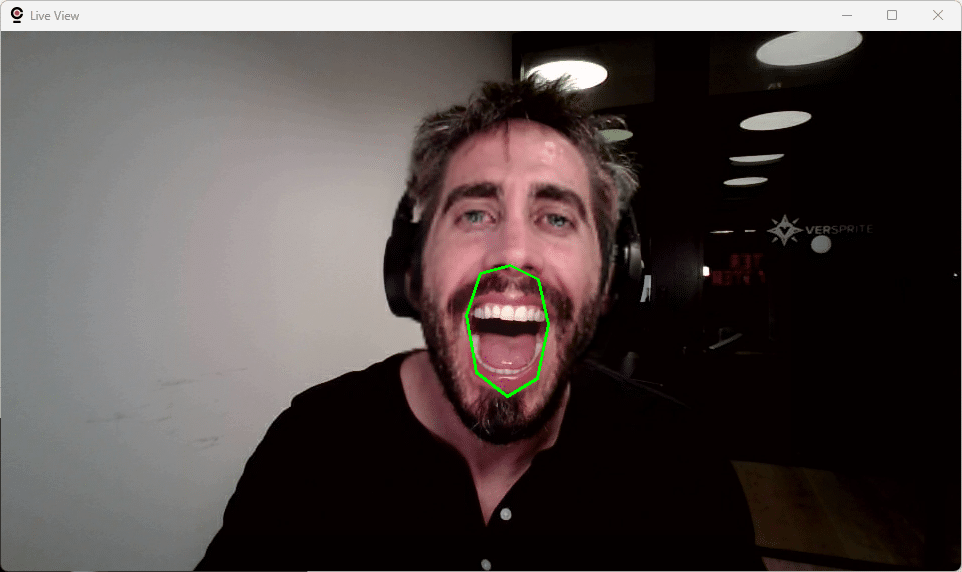
We defined three different mask types:
- Inner Mouth (8 landmarks): Precise inner mouth coverage with 10% horizontal × 120% vertical expansion (default)
- Mouth and Lips (12 landmarks): Broader coverage with 20% horizontal × 120% vertical expansion
- Custom Mask: User-defined via JSON configuration for edge cases
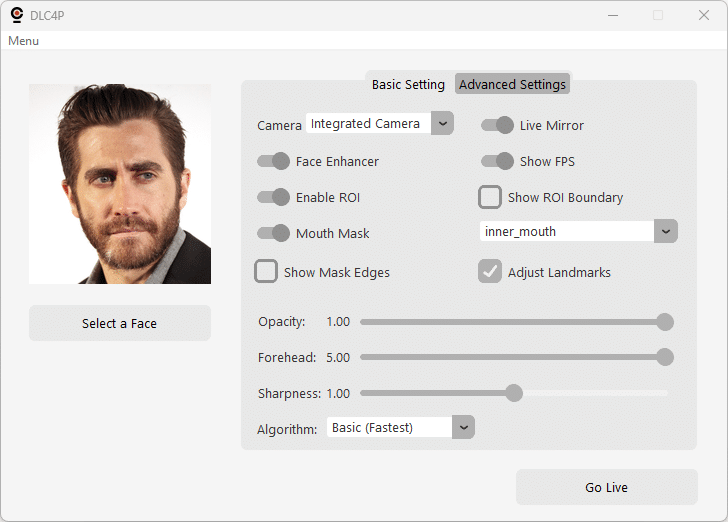
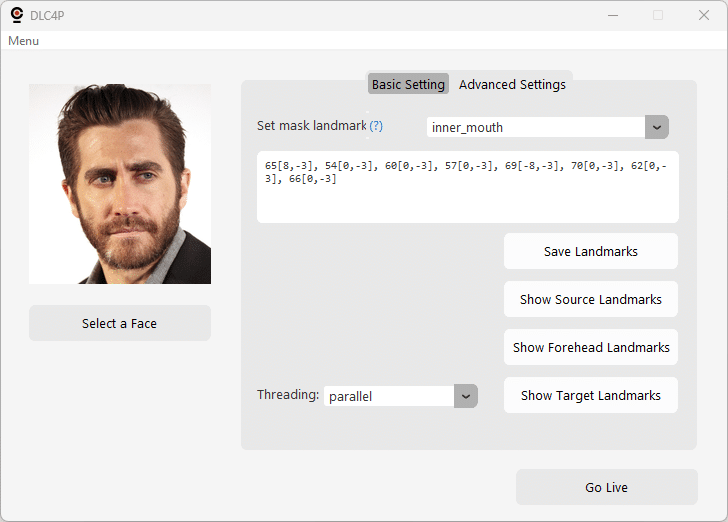
The Advanced Settings tab includes visual controls and debugging tools:
- Show Source Landmarks: Visualize all 106 facial landmarks with numbered labels
- Show Target Landmarks: Display target face landmarks for reference
- Adjust Landmarks: Enable/disable JSON-based pixel-level adjustments
- Mouth Mask Mode: Dropdown to select Inner Mouth / Mouth and Lips / Custom
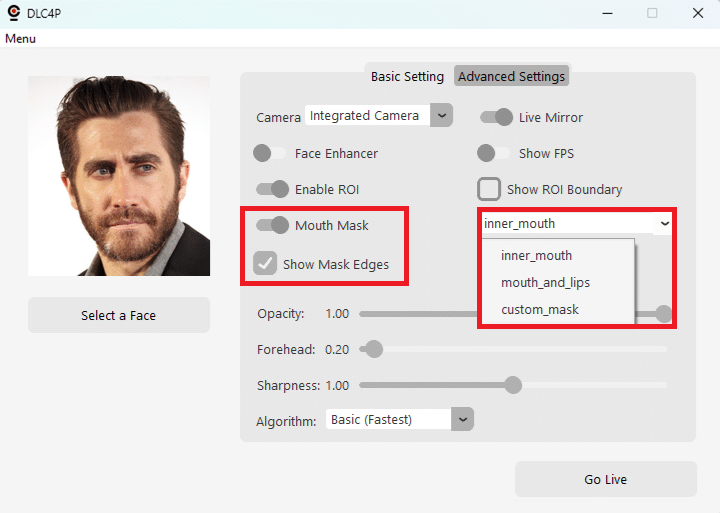
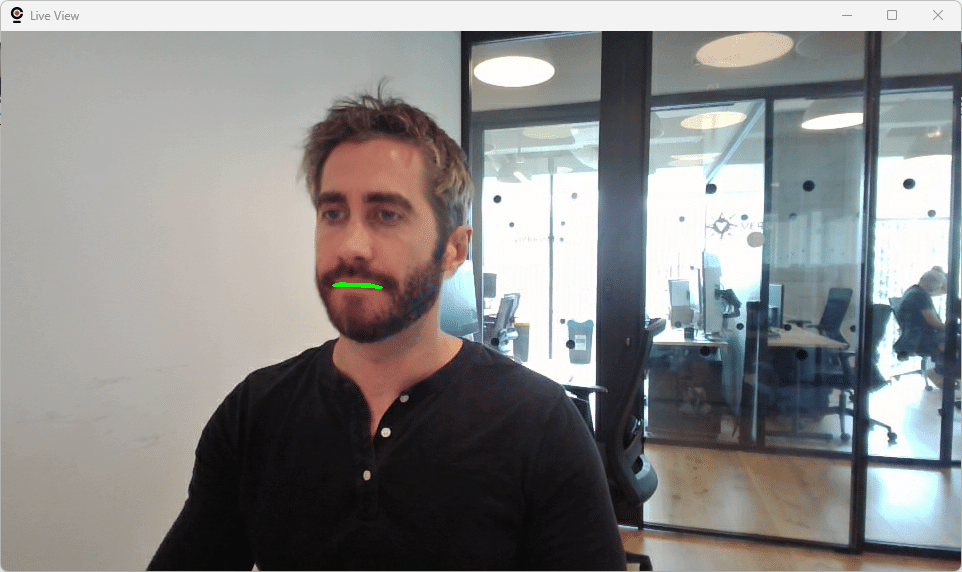
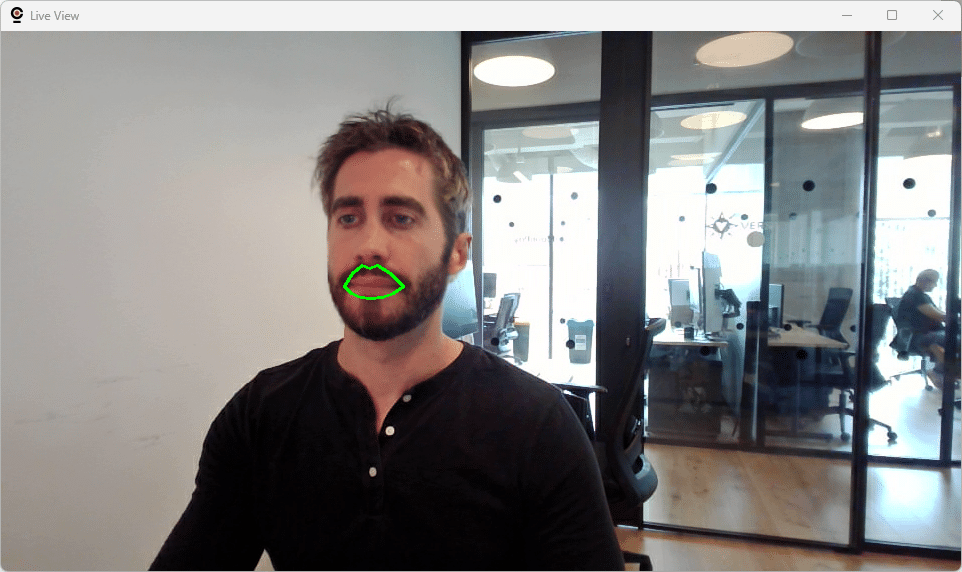
As you can see, if you put my full mouth and lips on Jake Gyllenhaal, he looks more like John Travolta.
From the Advanced Settings tab, you can generate a picture containing all landmarks for the person you are trying to impersonate, using the Show Target Landmarks button. This image will be saved in the same folder the source image is.
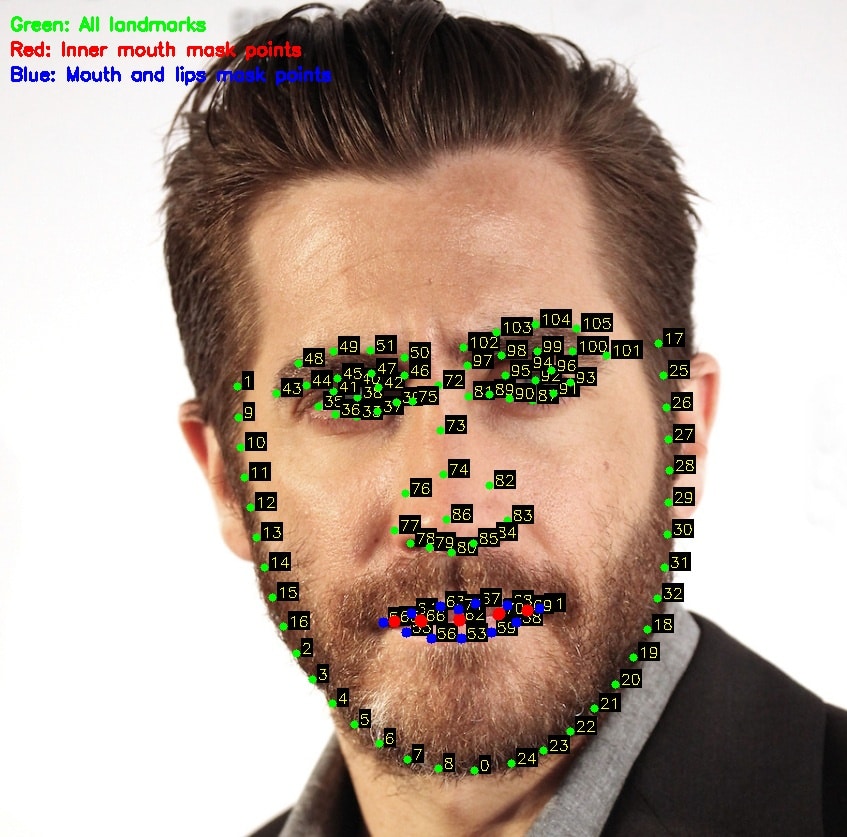
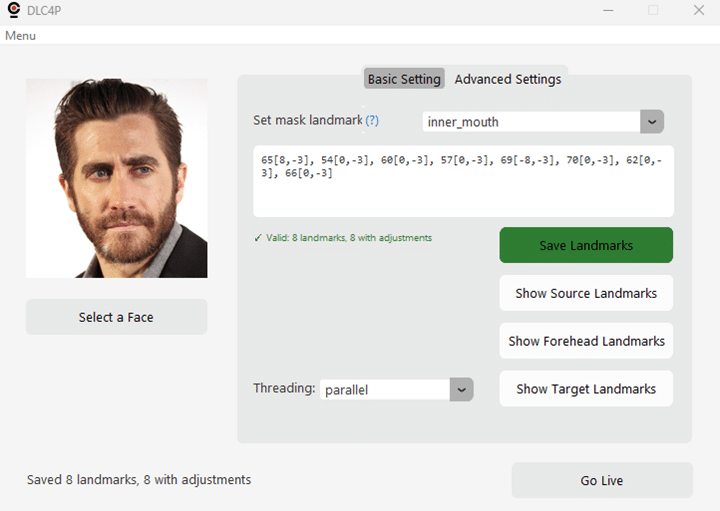
Using these values as reference, it is possible to create a custom mask and even adjust the position of the default masks. For this we defined a custom JSON Masking Configuration System for pixel-perfect alignment with difficult source faces, edit landmark_adjustments.json:
{
  "mask_adjustments": {
    "inner_mouth": {
      "landmarks": [65, 54, 60, 57, 69, 70, 62, 66],
      "adjustments": {
        "65": [8, -3],    // Move landmark 65: right 8px, up 3px
        "54": [0, -3]     // Move landmark 54: up 3px only
      }
    },
    "mouth_and_lips": {
      "landmarks": [53, 59, 58, 61, 68, 67, 71, 63, 64, 52, 55, 56]
    },
    "custom_mask": {
      "landmarks": [/* your custom landmark indices */]
    }
  }
}
Workflow:
- Enable “Show Landmarks” → See landmark positions
- Edit
landmark_adjustments.jsonwith pixel offsets - Enable “Adjust Landmarks” → Apply changes
- Enable “Show Mouth Mask” → Verify mask boundaries
- Iterate until perfect
No coding required—just JSON configuration and real-time visual feedback.
2. Persistent Face Tracking: Maintaining Impersonator Identity
One of the most critical requirements for live face swapping in professional scenarios is consistency. Imagine you’re conducting a live social engineering in front of a client, or a training session with multiple participants. You’re impersonating a target, everything is working perfectly—and then someone walks into the frame behind you. Suddenly, the application switches to swapping their face instead of yours, completely breaking the illusion and revealing your real identity to everyone watching.
This is a real problem with most face swapping tools, including the original Deep-Live-Cam. They mostly grab the first face detected in each frame without any concept of identity persistence. In multi-person scenarios, face detection order/priority can change based on:
- Relative distance to camera
- Lighting conditions
- Face angle and visibility
- Detection confidence scores
- Other frame-to-frame variations
The result? Unpredictable face switching that might undermine the credibility of your demonstration.
Our Solution: Embedding-Based Face Tracking
DLC4P implements a lightweight face tracking system that locks onto the first detected person (the impersonator) and maintains that identity consistently, even when other people enter or leave the frame.
Here’s how it works:
def get_tracked_face(faces: list) -> Any:
    """
    Get the tracked face from multiple detected faces using embedding similarity.
    Thread-safe implementation for parallel processing modes.
    """
    if not faces or len(faces) == 0:
        return None

    # Thread-safe: acquire lock for reading/writing tracked embedding
    with TRACKING_LOCK:
        # First detection ever - lock onto first face
        if modules.globals.tracked_face_embedding is None:
            first_face = faces[0]
            if hasattr(first_face, 'normed_embedding'):
                modules.globals.tracked_face_embedding = first_face.normed_embedding.copy()
            return first_face

        # Make a local copy for comparison (release lock during computation)
        tracked_embedding = modules.globals.tracked_face_embedding.copy()

    # Compare all faces against tracked embedding
    best_match = None
    best_similarity = -1.0

    for face in faces:
        if hasattr(face, 'normed_embedding') and face.normed_embedding is not None:
            # Cosine similarity (dot product of normalized embeddings)
            similarity = np.dot(tracked_embedding, face.normed_embedding)

            if similarity > best_similarity:
                best_similarity = similarity
                best_match = face

    # Thread-safe: check if match found
    with TRACKING_LOCK:
        # Match found above threshold (0.25)
        if best_match is not None and best_similarity >= 0.25:
            # No drift correction: embedding frozen after initial lock
            # This prevents any possibility of locking onto wrong person
            return best_match
        else:
            # Strict tracking: tracked person not found, return None
            return None
Key Technical Details:
- Face embeddings (512-dimensional vectors) are already computed during detection by Buffalo_l‘s ArcFace model. We simply reuse them for tracking—zero additional inference cost. After mulitple tests and adjustments, we hardcoded different thresholds for this feature to work:
- The tracked embedding is captured at session start and never updated. This eliminates any possibility of the embedding drifting to match the wrong person:
- Perfect self-match: 1.0 similarity (initialization)
- Same person at various angles: 0.25-0.99 similarity (matched successfully)
- Different people: 0.0-0.15 similarity (always rejected)
The single threshold (0.25) provides a good safety margin above typical wrong-person similarities (0.0-0.15 in our tests) while accommodating the natural variation in your appearance across different poses and lighting conditions.
- All embedding reads and writes are protected with mutex locks, preventing race conditions in parallel threading modes where multiple processing threads access face tracking state simultaneously.
- If the tracked person is not found (leaves frame, similarity below threshold), no face swapping occurs. This prevents accidentally swapping another person’s face if someone else remains in frame.
- Tracking resets when starting a new webcam session, ensuring each demonstration starts fresh with the current impersonator.
Debug Output Example:
When running with –debug, you can monitor the tracking system in real-time:
[FACE-TRACKING] Initialized tracking with first detected face (self-similarity: 1.000)

# Impersonator + 2 others present
[FACE-TRACKING] 3 faces detected - Similarities: [Face0:0.781, Face1:-0.041, Face2:0.074]
[FACE-TRACKING] Match found (similarity: 0.781)

# Impersonator leaves - only 2 others remain
[FACE-TRACKING] 2 faces detected - Similarities: [Face0:0.156, Face1:0.040]
[FACE-TRACKING] Tracked person not found (best similarity: 0.156), skipping swap

# Impersonator returns at an angle
[FACE-TRACKING] 3 faces detected - Similarities: [Face0:0.268, Face1:0.085, Face2:0.097]
[FACE-TRACKING] Match found (similarity: 0.268)

# Hours later, different lighting, turning head
[FACE-TRACKING] 3 faces detected - Similarities: [Face0:0.456, Face1:0.091, Face2:0.088]
[FACE-TRACKING] Match found (similarity: 0.456)
While the tracking mechanism is completely transparent—no UI controls, no configuration needed, we kept its debugging functionality to makes it easy for you to diagnose undiscovered tracking issues.
The User Interface: Tailored for Live Face Swapping
The original UI, which includes many controls and features intended for offline video processing, has been entirely redesigned to focus on both the original fetures specifically required for live face swapping and the enhanced features we added for tweaking and debugging:
Main Controls
- Source Face Selection: Quick-access file dialog
- Go Live Button: One-click activation
Basic Settings
- Camera Selection: Choose webcam device
- Live Mirroring: Toggle webcam display orientation
- Face Enhancer Toggle: Enable/disable CodeFormer enhancement
- FPS Counter: Show FPS couunter on live view for real-time performance monitoring
- Enable ROI Optimization: Toggle ROI processing on/off (for debugging purposes mainly)
- Show ROI Boundary: Visual debugging for ROI (yellow rectangle)
- Mouth Mask Toggle: Enable/disable mouth masking
- Mouth Mask Mode: Select mask type (inner mouth/mouth and lips/custom)
- Show Mask Edges: Check to see the mask edges during live view
- Adjust Landmarks: Apply any custom adjustments defined (in the Advanced tab) for the selected mask
- Face Swap Transparency: Blend amount control (0-100%)
- Forehead Extension: Adjust forehead mask coverage (defaults to 5.0)
- Face Sharpness: Post-processing sharpness control, quite useful if no face enhancer is used (defaults to 1.0)
- Algorithm: The algorithm used for face sharpness (if applied)
Advanced Settings
- Set Mask Landmarks: Define the landmarks used by the selected mask, and any adjustments if neccessary (see help on screen)
- Mask Landmarks Editor: Define mask landmarks/adjustments
- Save Landmarks: Save mask landmarks/adjustments
- Show Source Landmarks: Live view with numbered landmark points
- Show Target Landmarks: Generate landmark visualization image with the target image chosen
- Threading Mode Selector: Single/Basic/Enhanced/Parallel
Command Line Reference
Quick Start (Optimal Defaults)
python run.py --execution-provider tensorrt
This automatically sets:
--precision-swapper 32(FP32 swapper for quality)--precision-enhancer 16(FP16 enhancer for speed)--threading-mode single(maximum stability)
Maximum Quality Mode
python run.py --execution-provider tensorrt \
              --precision-swapper 32 \
              --precision-enhancer 32 \
              --threading-mode parallel
Expected: ~20 FPS with enhancement, highest quality
Maximum Performance Mode
python run.py --execution-provider tensorrt \
              --precision-swapper 16 \
              --precision-enhancer 16 \
              --threading-mode parallel
Expected: ~18 FPS with enhancement, great quality
Balanced (Default)
python run.py --execution-provider tensorrt \
              --precision-swapper 32 \
              --precision-enhancer 16 \
              --threading-mode parallel
Expected: ~17 FPS with enhancement, high quality (debug messages processing might introduce a slight decrease in performance of around 1 FPS)
Debug Mode
python run.py --execution-provider tensorrt \
              --precision-swapper 32 \
              --precision-enhancer 16 \
              --threading-mode parallel \
              --debug
Enables detailed console logging (10-second intervals):
[PERFORMANCE]: Average FPS (always shown, every 10 seconds)[DEBUG-TIMING]: Component timing (face detection, swapping, enhancement)[DEBUG-ROI]: ROI processing breakdown and pixel reduction stats[DEBUG-THREADING-P3]: Performance summary with drop rates[DEBUG-LATENCY]: End-to-end latency tracking[DEBUG-GPU-OPTIMIZATION]: GPU clock locking status
Additional Flags
--mouth-mask              # Enable adaptive mouth masking
--live-mirror             # Mirror webcam display
--live-resizable          # Resizable webcam window
--disable-roi             # Disable ROI optimization (debugging)
Installation and Setup
Prerequisites
- OS: Windows 10/11 or Linux
- GPU: NVIDIA RTX 3060+ (8GB+ VRAM recommended)
- Python: 3.10 strongly recommended (3.9+ should work)
- Privileges: Administrator rights recommended for GPU clock locking
Step 1: Environment Setup
We strongly recommend using Conda for dependency isolation:
# Install Miniconda (if not already installed)
# Download from: https://docs.conda.io/en/latest/miniconda.html

# Create environment
conda create -n DLC4P python=3.10 -y
conda activate DLC4P
Step 2: Install NVIDIA Drivers, CUDA, and cuDNN
# Verify NVIDIA driver
nvidia-smi

# Install CUDA Toolkit 12.X
# Download from: https://developer.nvidia.com/cuda-downloads

# Install cuDNN for CUDA 12.X
# Download from: https://developer.nvidia.com/rdp/cudnn-archive
# Extract and add cuDNN bin directory to PATH
Step 3: Clone and Install
# Clone repository
git clone <your-repo-url>
cd DLC4P

# Install requirements
pip install -r requirements.txt

# Verify installation
python check_environment.py
Step 4: Download Models
Download the required models and place them in the models/ directory:
Face Detection Models:
The full suite of buffalo_l models will be downloaded automatically during the first application run, same as in the original implementation.
Face Swapping Models:
inswapper_128.onnx (FP32 – robust, high quality)
- GitHub: https://github.com/facefusion/facefusion-assets/releases/download/models-3.0.0/inswapper_128.onnx
- HuggingFace: https://huggingface.co/facefusion/models-3.0.0/resolve/main/inswapper_128.onnx
inswapper_128_fp16.onnx (FP16 – faster, good quality)
- GitHub: https://github.com/facefusion/facefusion-assets/releases/download/models-3.0.0/inswapper_128_fp16.onnx
- HuggingFace: https://huggingface.co/facefusion/models-3.0.0/resolve/main/inswapper_128_fp16.onnx
Face Enhancement Models:
codeformer.onnx (ONNX-optimized CodeFormer)
- GitHub: https://github.com/facefusion/facefusion-assets/releases/download/models-3.0.0/codeformer.onnx
- HuggingFace: https://huggingface.co/facefusion/models-3.0.0/resolve/main/codeformer.onnx
Note: These models are provided by FaceFusion, a well-known offline face manipulation software. We are not responsible for the availability or content of these external links.
Step 5: First Run (TensorRT Engine Build)
# Run with TensorRT (first run will build engines - 2-5 minutes)
python run.py --execution-provider tensorrt
# Run with TensorRT (first run will build engines - 2-5 minutes)
python run.py --execution-provider tensorrt
Note that the first run will take a couple (2-5) minutes to complete. Use this time to grab a coffe while DLC4P analyzes each model with TensorRT, builds optimized execution engines and caches them in fp16_trt_cache/ and fp32_trt_cache/ (depending on the parameters you used in the command line). Subsequent runs load these cached engines and run immediately.
Console output excerpt:
(DLC4P) PS C:\Users\poro\DLC4P> gsudo python run.py --execution-provider tensorrt --precision-swapper 16 --precision-enhancer 16 --threading-mode parallel
Applied providers: ['TensorrtExecutionProvider', 'CPUExecutionProvider'], with options: {'TensorrtExecutionProvider': {'device_id': '0', 'trt_max_partition_iterations': '1000', 'trt_max_workspace_size': '4294967296', 'has_user_compute_stream': '0', 'trt_dump_ep_context_model': '0', 'trt_int8_enable': '0', 'trt_timing_cache_path': './fp16_trt_cache\\face_detection/face_detection_timing.dat', 'trt_force_timing_cache': '0', 'user_compute_stream': '0', 'trt_min_subgraph_size': '1', 'trt_weight_stripped_engine_enable': '0', 'trt_force_sequential_engine_build': '0', 'trt_fp16_enable': '0', 'trt_int8_calibration_table_name': '', 'trt_int8_use_native_calibration_table': '0', 'trt_engine_cache_path': './fp16_trt_cache\\face_detection', 'trt_dla_enable': '0', 'trt_dla_core': '0', 'trt_dump_subgraphs': '0', 'trt_engine_cache_enable': '1', 'trt_onnx_model_folder_path': '', 'trt_engine_decryption_lib_path': '', 'trt_engine_cache_prefix': '', 'trt_engine_decryption_enable': '0', 'trt_context_memory_sharing_enable': '0', 'trt_layer_norm_fp32_fallback': '0', 'trt_timing_cache_enable': '1', 'trt_ep_context_embed_mode': '0', 'trt_detailed_build_log': '0', 'trt_profile_opt_shapes': '', 'trt_build_heuristics_enable': '0', 'trt_onnx_bytestream_size': '0', 'trt_sparsity_enable': '0', 'trt_builder_optimization_level': '5', 'trt_auxiliary_streams': '1', 'trt_tactic_sources': '', 'trt_extra_plugin_lib_paths': '', 'trt_profile_min_shapes': '', 'trt_profile_max_shapes': '', 'trt_cuda_graph_enable': '0', 'trt_ep_context_file_path': '', 'trt_engine_hw_compatible': '0', 'trt_onnx_bytestream': '0000000000000000', 'trt_op_types_to_exclude': ''}, 'CPUExecutionProvider': {}}
find model: C:\Users\poro/.insightface\models\buffalo_l\1k3d68.onnx landmark_3d_68 ['None', 3, 192, 192] 0.0 1.0
Applied providers: ['TensorrtExecutionProvider', 'CPUExecutionProvider'], with options: {'TensorrtExecutionProvider': {'device_id': '0', 'trt_max_partition_iterations': '1000', 'trt_max_workspace_size': '4294967296', 'has_user_compute_stream': '0', 'trt_dump_ep_context_model': '0', 'trt_int8_enable': '0', 'trt_timing_cache_path': './fp16_trt_cache\\face_detection/face_detection_timing.dat', 'trt_force_timing_cache': '0', 'user_compute_stream': '0', 'trt_min_subgraph_size': '1', 'trt_weight_stripped_engine_enable': '0', 'trt_force_sequential_engine_build': '0', 'trt_fp16_enable': '0', 'trt_int8_calibration_table_name': '', 'trt_int8_use_native_calibration_table': '0', 'trt_engine_cache_path': './fp16_trt_cache\\face_detection', 'trt_dla_enable': '0', 'trt_dla_core': '0', 'trt_dump_subgraphs': '0', 'trt_engine_cache_enable': '1', 'trt_onnx_model_folder_path': '', 'trt_engine_decryption_lib_path': '', 'trt_engine_cache_prefix': '', 'trt_engine_decryption_enable': '0', 'trt_context_memory_sharing_enable': '0', 'trt_layer_norm_fp32_fallback': '0', 'trt_timing_cache_enable': '1', 'trt_ep_context_embed_mode': '0', 'trt_detailed_build_log': '0', 'trt_profile_opt_shapes': '', 'trt_build_heuristics_enable': '0', 'trt_onnx_bytestream_size': '0', 'trt_sparsity_enable': '0', 'trt_builder_optimization_level': '5', 'trt_auxiliary_streams': '1', 'trt_tactic_sources': '', 'trt_extra_plugin_lib_paths': '', 'trt_profile_min_shapes': '', 'trt_profile_max_shapes': '', 'trt_cuda_graph_enable': '0', 'trt_ep_context_file_path': '', 'trt_engine_hw_compatible': '0', 'trt_onnx_bytestream': '0000000000000000', 'trt_op_types_to_exclude': ''}, 'CPUExecutionProvider': {}}
find model: C:\Users\poro/.insightface\models\buffalo_l\2d106det.onnx landmark_2d_106 ['None', 3, 192, 192] 0.0 1.0
Applied providers: ['TensorrtExecutionProvider', 'CPUExecutionProvider'], with options: {'TensorrtExecutionProvider': {'device_id': '0', 'trt_max_partition_iterations': '1000', 'trt_max_workspace_size': '4294967296', 'has_user_compute_stream': '0', 'trt_dump_ep_context_model': '0', 'trt_int8_enable': '0', 'trt_timing_cache_path': './fp16_trt_cache\\face_detection/face_detection_timing.dat', 'trt_force_timing_cache': '0', 'user_compute_stream': '0', 'trt_min_subgraph_size': '1', 'trt_weight_stripped_engine_enable': '0', 'trt_force_sequential_engine_build': '0', 'trt_fp16_enable': '0', 'trt_int8_calibration_table_name': '', 'trt_int8_use_native_calibration_table': '0', 'trt_engine_cache_path': './fp16_trt_cache\\face_detection', 'trt_dla_enable': '0', 'trt_dla_core': '0', 'trt_dump_subgraphs': '0', 'trt_engine_cache_enable': '1', 'trt_onnx_model_folder_path': '', 'trt_engine_decryption_lib_path': '', 'trt_engine_cache_prefix': '', 'trt_engine_decryption_enable': '0', 'trt_context_memory_sharing_enable': '0', 'trt_layer_norm_fp32_fallback': '0', 'trt_timing_cache_enable': '1', 'trt_ep_context_embed_mode': '0', 'trt_detailed_build_log': '0', 'trt_profile_opt_shapes': '', 'trt_build_heuristics_enable': '0', 'trt_onnx_bytestream_size': '0', 'trt_sparsity_enable': '0', 'trt_builder_optimization_level': '5', 'trt_auxiliary_streams': '1', 'trt_tactic_sources': '', 'trt_extra_plugin_lib_paths': '', 'trt_profile_min_shapes': '', 'trt_profile_max_shapes': '', 'trt_cuda_graph_enable': '0', 'trt_ep_context_file_path': '', 'trt_engine_hw_compatible': '0', 'trt_onnx_bytestream': '0000000000000000', 'trt_op_types_to_exclude': ''}, 'CPUExecutionProvider': {}}
find model: C:\Users\poro/.insightface\models\buffalo_l\det_10g.onnx detection [1, 3, '?', '?'] 127.5 128.0
Applied providers: ['TensorrtExecutionProvider', 'CPUExecutionProvider'], with options: {'TensorrtExecutionProvider': {'device_id': '0', 'trt_max_partition_iterations': '1000', 'trt_max_workspace_size': '4294967296', 'has_user_compute_stream': '0', 'trt_dump_ep_context_model': '0', 'trt_int8_enable': '0', 'trt_timing_cache_path': './fp16_trt_cache\\face_detection/face_detection_timing.dat', 'trt_force_timing_cache': '0', 'user_compute_stream': '0', 'trt_min_subgraph_size': '1', 'trt_weight_stripped_engine_enable': '0', 'trt_force_sequential_engine_build': '0', 'trt_fp16_enable': '0', 'trt_int8_calibration_table_name': '', 'trt_int8_use_native_calibration_table': '0', 'trt_engine_cache_path': './fp16_trt_cache\\face_detection', 'trt_dla_enable': '0', 'trt_dla_core': '0', 'trt_dump_subgraphs': '0', 'trt_engine_cache_enable': '1', 'trt_onnx_model_folder_path': '', 'trt_engine_decryption_lib_path': '', 'trt_engine_cache_prefix': '', 'trt_engine_decryption_enable': '0', 'trt_context_memory_sharing_enable': '0', 'trt_layer_norm_fp32_fallback': '0', 'trt_timing_cache_enable': '1', 'trt_ep_context_embed_mode': '0', 'trt_detailed_build_log': '0', 'trt_profile_opt_shapes': '', 'trt_build_heuristics_enable': '0', 'trt_onnx_bytestream_size': '0', 'trt_sparsity_enable': '0', 'trt_builder_optimization_level': '5', 'trt_auxiliary_streams': '1', 'trt_tactic_sources': '', 'trt_extra_plugin_lib_paths': '', 'trt_profile_min_shapes': '', 'trt_profile_max_shapes': '', 'trt_cuda_graph_enable': '0', 'trt_ep_context_file_path': '', 'trt_engine_hw_compatible': '0', 'trt_onnx_bytestream': '0000000000000000', 'trt_op_types_to_exclude': ''}, 'CPUExecutionProvider': {}}
find model: C:\Users\poro/.insightface\models\buffalo_l\genderage.onnx genderage ['None', 3, 96, 96] 0.0 1.0
Applied providers: ['TensorrtExecutionProvider', 'CPUExecutionProvider'], with options: {'TensorrtExecutionProvider': {'device_id': '0', 'trt_max_partition_iterations': '1000', 'trt_max_workspace_size': '4294967296', 'has_user_compute_stream': '0', 'trt_dump_ep_context_model': '0', 'trt_int8_enable': '0', 'trt_timing_cache_path': './fp16_trt_cache\\face_detection/face_detection_timing.dat', 'trt_force_timing_cache': '0', 'user_compute_stream': '0', 'trt_min_subgraph_size': '1', 'trt_weight_stripped_engine_enable': '0', 'trt_force_sequential_engine_build': '0', 'trt_fp16_enable': '0', 'trt_int8_calibration_table_name': '', 'trt_int8_use_native_calibration_table': '0', 'trt_engine_cache_path': './fp16_trt_cache\\face_detection', 'trt_dla_enable': '0', 'trt_dla_core': '0', 'trt_dump_subgraphs': '0', 'trt_engine_cache_enable': '1', 'trt_onnx_model_folder_path': '', 'trt_engine_decryption_lib_path': '', 'trt_engine_cache_prefix': '', 'trt_engine_decryption_enable': '0', 'trt_context_memory_sharing_enable': '0', 'trt_layer_norm_fp32_fallback': '0', 'trt_timing_cache_enable': '1', 'trt_ep_context_embed_mode': '0', 'trt_detailed_build_log': '0', 'trt_profile_opt_shapes': '', 'trt_build_heuristics_enable': '0', 'trt_onnx_bytestream_size': '0', 'trt_sparsity_enable': '0', 'trt_builder_optimization_level': '5', 'trt_auxiliary_streams': '1', 'trt_tactic_sources': '', 'trt_extra_plugin_lib_paths': '', 'trt_profile_min_shapes': '', 'trt_profile_max_shapes': '', 'trt_cuda_graph_enable': '0', 'trt_ep_context_file_path': '', 'trt_engine_hw_compatible': '0', 'trt_onnx_bytestream': '0000000000000000', 'trt_op_types_to_exclude': ''}, 'CPUExecutionProvider': {}}
find model: C:\Users\poro/.insightface\models\buffalo_l\w600k_r50.onnx recognition ['None', 3, 112, 112] 127.5 127.5
[FACE-ANALYSER] Buffalo_l models loaded: ['landmark_3d_68', 'landmark_2d_106', 'detection', 'genderage', 'recognition']
set det-size: (320, 320)
[FACE-ANALYSER] Buffalo_l models after prepare: ['landmark_3d_68', 'landmark_2d_106', 'detection', 'genderage', 'recognition']
[FACE-ANALYSER] Models successfully removed: ['genderage', 'landmark_3d_68']
[FACE-ANALYSER] Active models (3): ['landmark_2d_106', 'detection', 'recognition']
[FACE-ANALYSER] Buffalo_l optimization complete - using detection + recognition + 2D landmarks
[DLC.FACE-SWAPPER] Loading FP16 model: inswapper_128_fp16.onnx
[DLC.FACE-SWAPPER] Loading face swapper with TensorRT FP16 configuration
Applied providers: ['TensorrtExecutionProvider', 'CPUExecutionProvider'], with options: {'TensorrtExecutionProvider': {'device_id': '0', 'trt_max_partition_iterations': '1000', 'trt_max_workspace_size': '0', 'has_user_compute_stream': '0', 'trt_dump_ep_context_model': '0', 'trt_int8_enable': '0', 'trt_timing_cache_path': './fp16_trt_cache\\face_swapper/face_swapper_timing.dat', 'trt_force_timing_cache': '0', 'user_compute_stream': '0', 'trt_min_subgraph_size': '1', 'trt_weight_stripped_engine_enable': '0', 'trt_force_sequential_engine_build': '0', 'trt_fp16_enable': '0', 'trt_int8_calibration_table_name': '', 'trt_int8_use_native_calibration_table': '0', 'trt_engine_cache_path': './fp16_trt_cache\\face_swapper', 'trt_dla_enable': '0', 'trt_dla_core': '0', 'trt_dump_subgraphs': '0', 'trt_engine_cache_enable': '1', 'trt_onnx_model_folder_path': '', 'trt_engine_decryption_lib_path': '', 'trt_engine_cache_prefix': '', 'trt_engine_decryption_enable': '0', 'trt_context_memory_sharing_enable': '0', 'trt_layer_norm_fp32_fallback': '1', 'trt_timing_cache_enable': '1', 'trt_ep_context_embed_mode': '0', 'trt_detailed_build_log': '0', 'trt_profile_opt_shapes': '', 'trt_build_heuristics_enable': '0', 'trt_onnx_bytestream_size': '0', 'trt_sparsity_enable': '0', 'trt_builder_optimization_level': '3', 'trt_auxiliary_streams': '1', 'trt_tactic_sources': '', 'trt_extra_plugin_lib_paths': '', 'trt_profile_min_shapes': '', 'trt_profile_max_shapes': '', 'trt_cuda_graph_enable': '0', 'trt_ep_context_file_path': '', 'trt_engine_hw_compatible': '0', 'trt_onnx_bytestream': '0000000000000000', 'trt_op_types_to_exclude': ''}, 'CPUExecutionProvider': {}}
inswapper-shape: [1, 3, 128, 128]
[DLC.FACE-SWAPPER] ROI memory pool initialized with 6 size variants
[DLC.FACE-SWAPPER] Face swapper successfully loaded with TensorRT acceleration
[DLC.FACE-ENHANCER] Loading CodeFormer with TensorRT acceleration
[DLC.FACE-ENHANCER] CodeFormer ONNX loaded successfully. Inputs: [('input', [1, 3, 512, 512], 'tensor(float)'), ('weight', [], 'tensor(double)')]
[DLC.FACE-ENHANCER] Memory pool initialized for optimal performance
[DLC.FACE-ENHANCER] CodeFormer successfully loaded with TensorRT acceleration
[PERFORMANCE] Average FPS: 19.5
[PERFORMANCE] Average FPS: 21.0
[PERFORMANCE] Average FPS: 20.4
[PERFORMANCE] Average FPS: 19.9
...
Troubleshooting Common Issues
1. TensorRT Engines Not Building
Symptom: First run hangs or errors during engine build
Solutions:
- Ensure CUDA Toolkit and cuDNN are properly installed
- Check that
nvidia-smishows driver version ≥ 527.41 - Verify VRAM availability:
nvidia-smi(need 4GB+ free) - Try clearing cache: Delete
fp16_trt_cache/andfp32_trt_cache/
2. Low FPS Performance
Symptom: Achieving only 10-12 FPS instead of 20+ FPS
Solutions:
- Wait for TensorRT: First run is slow; subsequent runs are fast
- Run as Administrator: Enables GPU clock locking
- Check GPU clocks: Use
nvidia-smi -q -d CLOCKto verify locked clocks - Close other GPU apps: Free VRAM for DLC4P
- Try FP16 models:
--precision-swapper 16 --precision-enhancer 16
3. Mouth Artifacts
Symptom: Visible seams or distortion around mouth
Solutions:
- Enable mouth masking:
--mouth-maskor toggle in UI - Adjust mask expansion: Use slider in Advanced Settings
- Try different mask mode: Inner Mouth vs Mouth and Lips
- Use landmark adjustment: Edit
landmark_adjustments.json - Enable “Show Mouth Mask” to visualize coverage
4. GPU Clock Locking Fails
Symptom: FPS fluctuates, see “GPU clock lock failed” message
Solutions:
- Run as Administrator (Windows) or with sudo (Linux)
- Check if nvidia-smi is in PATH:
where nvidia-smi - Verify GPU supports clock locking: Check NVIDIA documentation
- Non-critical issue: Application still runs, just without clock stability
5. Out of Memory Errors
Symptom: CUDA out of memory errors
Solutions:
- Close other GPU applications
- Use FP16 models:
--precision-swapper 16 --precision-enhancer 16 - Disable face enhancement temporarily: Remove from frame processors in UI
- Check VRAM usage:
nvidia-smi(need 4-6GB available)
Technical Deep Dive: Memory Optimizations
Beyond the major architectural changes exposed so far, DLC4P implements other micro-optimizations that contribute to overall performance, including:
Pre-allocated Buffer Pools
# Frame buffer pool (modules/ui.py)
UI_MEMORY_POOL = {
    'rgb_buffers': {},      # BGR→RGB conversion buffers
    'resize_buffers': {},   # Frame resizing buffers
    'pil_image_cache': {},  # Cached PIL images
    'temp_arrays': {}       # Temporary operation arrays
}

# ROI tensor pool (face_swapper.py)
ROI_TENSOR_POOL = {
    'roi_arrays': {},       # Pre-allocated ROI arrays
    'temp_face_128': np.zeros((128, 128, 3), dtype=np.uint8),
}

# CodeFormer tensor pool (face_enhancer.py)
TENSOR_POOL = {
    'input_tensor_512': np.zeros((1, 3, 512, 512), dtype=np.float32),
    'weight_tensor': np.array(1.0, dtype=np.float32),
    'temp_arrays': {
        'face_512_bgr': np.zeros((512, 512, 3), dtype=np.uint8),
        'face_512_rgb': np.zeros((512, 512, 3), dtype=np.uint8),
    }
}
Impact:
- Significant reduction in per-frame memory allocations
- Reduced garbage collection pressure
- Smoother frame timing (fewer allocation-related stutters)
Shared Detection Cache
# Single face detection shared between swapper and enhancer
cached_data = {
    'face_coordinates': target_face,
    'roi_coordinates': roi_coords,
    'mouth_mask_data': mouth_mask,
    'frame_id': frame_id,
    'frame_shape': frame_shape
}

# Swapper populates cache
update_frame_cache(**cached_data)

# Enhancer reuses cached data (saves around 7ms per frame)
cached = get_cached_frame_data(frame_id, frame_shape)
if cached:
    # Use cached detection - no redundant Buffalo_l call
    process_enhancement_with_cache(frame, cached)
Impact:
- around 7ms saved per frame (no redundant face detection)
- Consistent face coordinates across swapper and enhancer
- Thread-safe caching with lock-based synchronization
Comparison with Original Deep-Live-Cam
What We Kept
- Core face swapping algorithm (InSwapper-128)
- Buffalo_l face detection framework
- High-quality face alignment
- Source face selection workflow
What We Removed
- Offline video processing (focus on live face swapping only)
- Video file input/output
- Frame extraction pipeline
- Audio restoration
- Multiple video codec support
- Unnecessary Buffalo_l models (genderage, landmark_3d_68)
What We Added/Improved
| Feature | Deep-Live-Cam | DLC4P |
|---|---|---|
| TensorRT Acceleration | CUDA | Full TensorRT support |
| ROI-Based Processing | Full frame | ~88% pixel reduction |
| Face Enhancement | GFPGAN (PyTorch) | CodeFormer (ONNX) |
| Adaptive Mouth Masking | Basic mouth masking | Dynamic mouth expansion |
| Landmark Adjustments | Not available | JSON-based pixel alignment system |
| Face Tracking | First face in frame | Embedding-based persistent tracking |
| Multi-Threading | Single-threaded | 1 to 4 threads |
| GPU Clock Locking | Not available | Auto-stabilization |
| Memory Pooling | Not implemented | Pre-allocated buffers |
| Shared Detection Cache | Not available | Cached between processors |
| Performance Instrumentation | Limited logging | Detailed timing stats |
What Is Still Missing (Practical Considerations)
Despite all the improvements discussed, this tool is far from perfect. It does a great job, but it is not magic whatsoever. There are multiple scenarios where there is plenty of room for improvement:
- It is (so far) not possible for any given person to impersonate an absolutely different person—I could not fake Margot Robbie, there must be some physical resemblances (skin color, face structure, body shape, et cetera)
- There are some extreme mouth expressions that can still look fake or weird, especially when looking sideways
- If your targets has a beard, your real beard should resemble the color of the target’s beard to be more reliable. A quick makup with henna, dye powders, or even baby powder if your target has greys and you don’t
- Appropriate lighting is important for reliability and even the resulting FPS might be impacted
Tune your scenario according to your goal, and stress test it beforehand to detect and avoid any potential quirks we might be missing here.
Get It Now
DLC4P represents months of optimization work distilled into a production-ready tool for security professionals. Whether you’re conducting social engineering training, red team operations, deepfake detection research, or security product demonstrations, DLC4P gives you the performance and quality you need to do the job right.
Download and Documentation
You can find DLC4P, along with full documentation, installation guides, and troubleshooting resources, on our GitHub:
https://github.com/VerSprite/DLC4P/
Contributing
We welcome feedback, bug reports, feature requests, new forks, and contributions from the security community. If you find DLC4P useful in your work, let us know! We’re particularly interested in:
- Performance benchmarks on different hardware
- Use cases we haven’t considered
- Optimization suggestions
- Bug reports with debug output
Final Thoughts
When we started optimizing Deep-Live-Cam, we had a simple goal: make deepfakes look more realistic and fast enough for professional use. What we ended up with was a complete re-architecture of the processing pipeline—TensorRT acceleration, ROI-based processing, CodeFormer integration, adaptive mouth masking, multi-threading, and GPU clock stabilization.
Give DLC4P a try. We think you’ll find it’s a tool you were missing in your toolbox.
For questions, collaboration inquiries, or technical support, you can reach out to me at [email protected] or visit https://versprite.com — but please be patient, I have both a job and a life (sort of).
- /
- /
- /
- /
- /
- /
- /
- /
- /
- /
- /
- /
- /
- /
- /
- /
- /
- /
- /
- /
- /
- /
Related Resources



Subscribe for Our Updates
Please enter your email address and receive the latest updates.
